
Question:
How do I create a report and save it?
Environment:
Microsoft Dynamics Customer Experience - Sales (D365 CRM)
Guide:
This article will walk you through the basics of the D365 CRM Advanced Find. You will learn how to setup a report for accounts, contacts, leads and opportunities and customize the columns in your report. You can use the link below to Watch a video.
1. Log into your CRM Environment
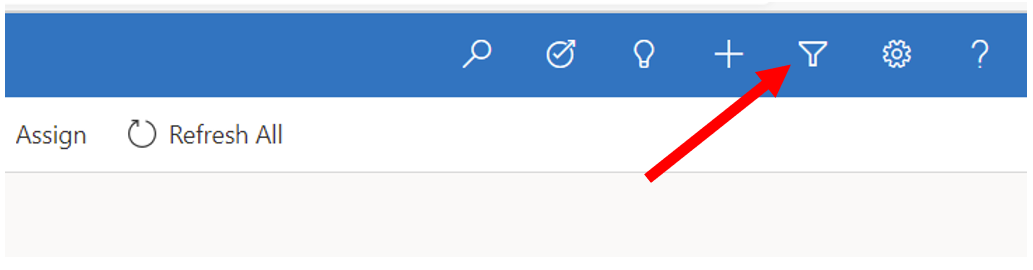
2. Click on the filter at the top right of your browser.
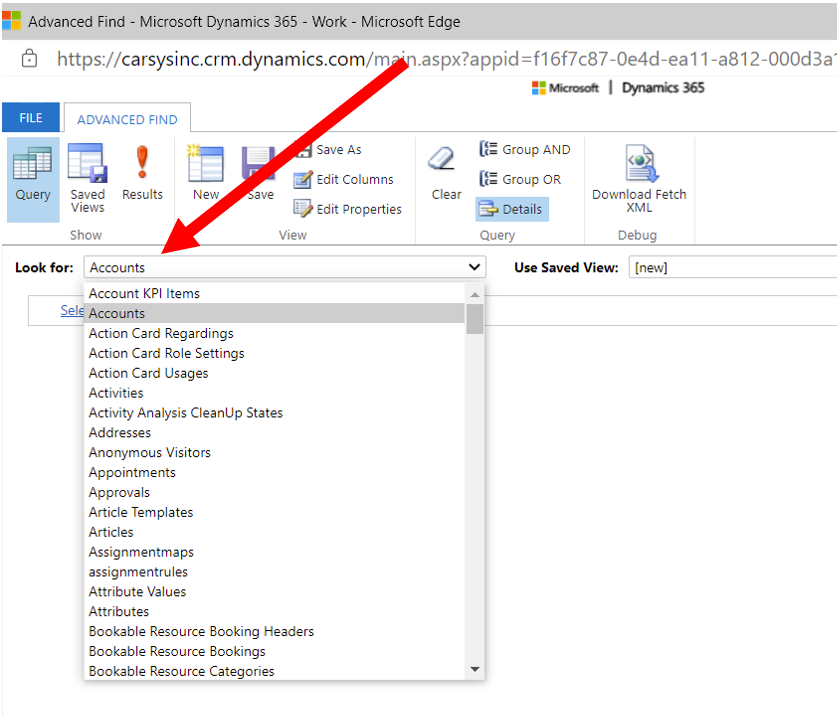
2. From the drop-down menu, select the entity you want to search within. NOTE: In Advanced Find you can search for fields on any entity and even across entities.
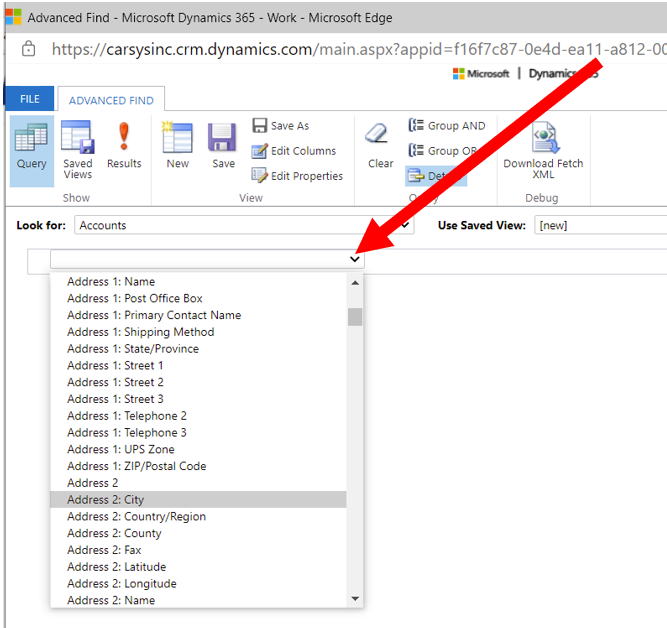
3. Click on the dropdown to find the field you want to search.
4. Select the criteria and enter the text you want to filter by.
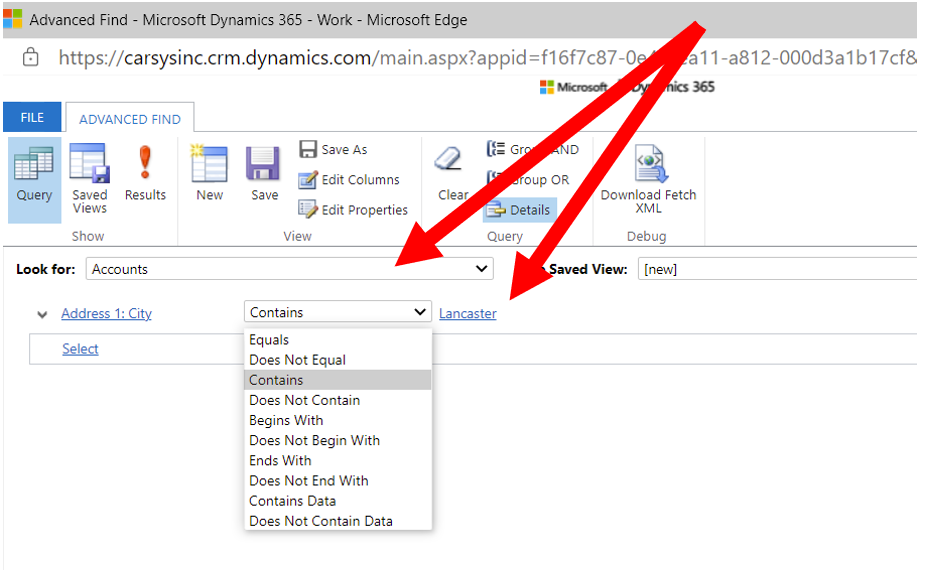
5. Add additional filter criteria if needed following Steps 3 and 4.
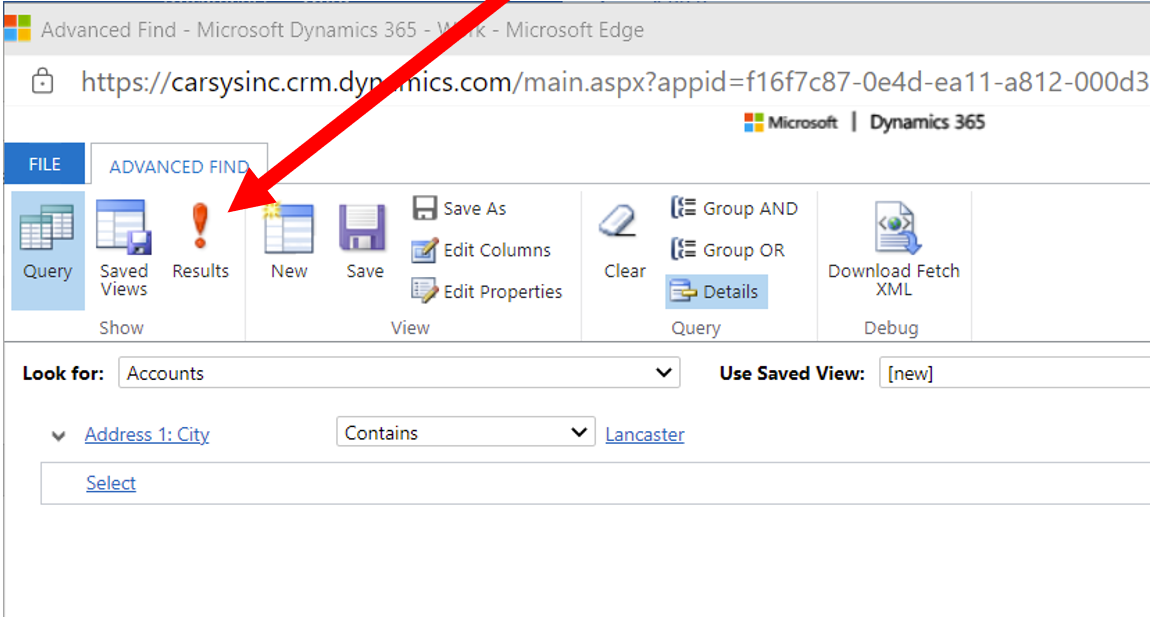
6. Click on the "Results" button to see what records match your search.
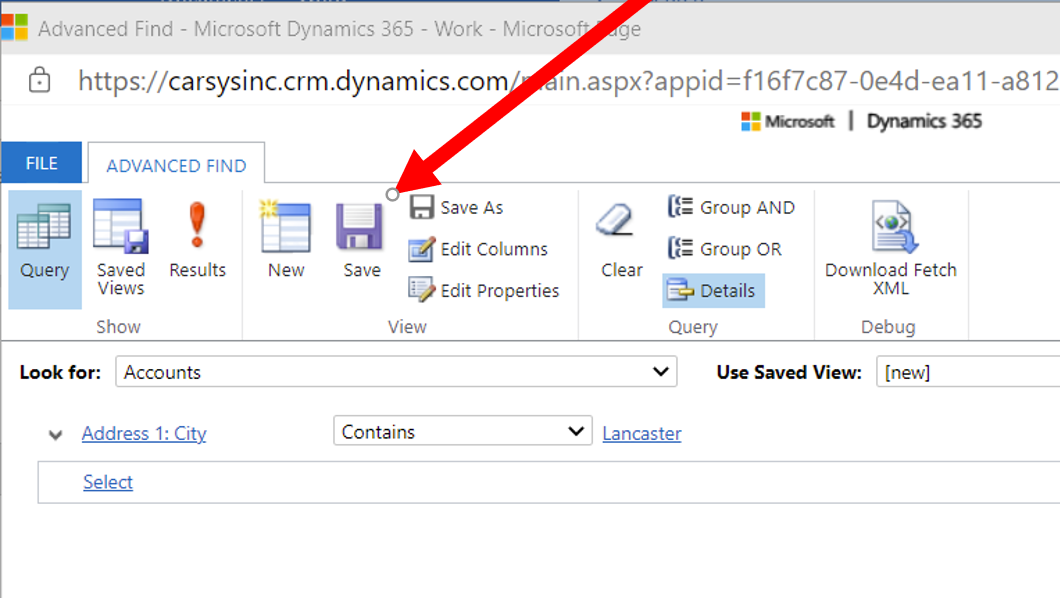
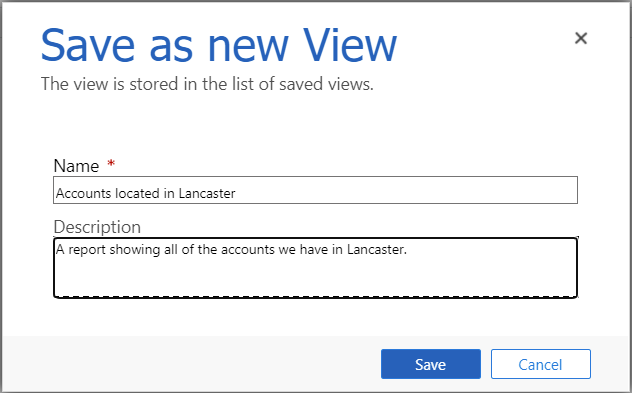
7. Save your report to view it later. NOTE: Be sure to give it a descriptive title so you can find it again.
If you'd like a more detail view, check out the video link below: Watch a video
Comments
Please sign in to leave a comment.